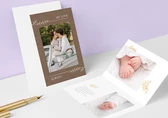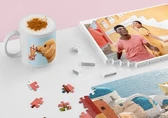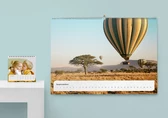
You can add fill boxes to your photo product to complement your design. Tap the Fill box button at the bottom to open the fill box menu with options for Color, Gradient, and Texture. Select a tab to view the corresponding options.

Mark a fill box as a favorite by tapping the heart icon at the bottom of each fill box. The heart icon will turn gray. To remove a fill box from your favorites, tap the heart icon again. To filter and view only your favorites fill boxes, tick the Show only favorites checkbox.

When a Fill box is selected, it is added to the photo product. You will need to resize it and place it where you want it to fit into your design. For more information read the Size and Position objects article.

You can replace a Fill Box by selecting it and tapping the Edit button in the bottom menu. To remove it, tap the Delete button.

Get exclusive discounts and designing tips! By signing up, you acknowledge our Privacy Policy. You can unsubscribe at any moment.




Your language setting does not match the language of this website. Please choose:
Your language setting does not match the language of this website. Please choose:

 Change your country